


Have you ever wondered what tampering with your smartphone will result in? You may wonder if this will make your device perform better. What if it breaks something and slows it down? Rather than simply telling users “Do or don’t”, we like to explain in detail what it really is – effect, impact, and invisible background action. So, we’re going to expand on what happens when you force stop an app on your Android or iPhone.

On iOS devices, it’s pretty easy to force an app to stop; Swipe up on the app in iOS App Switcher. For Android devices, you need to launch the app’s info page (Settings > Apps & notifications > App info > Select app) and tap on Force Stop. Alternatively, you can use the Task Switcher feature of your Android phone.

Force Stop App on iOS

Force Stop App on Android
You know how to force stop an app, but what exactly does it mean to force stop an app? And what happens next? Does it have any negative impact on the performance of the application? Does it affect your smartphone? Is it safe to force stop an app? And when exactly should you do this? We answer all of this and more in the sections below.
What Does It Mean to Force Stop an App?
Most people believe that when you close all apps on your phone normally, i.e. uninstall them from the app switcher, they are completely terminated. But this is not always the case. For example, an app that is running some incomplete process (for example, a pending/progress download) may remain active in the background for several minutes or seconds after it is closed. The app will eventually close, but not until it completes the ongoing processes and prepares itself for shutdown.

On the other hand, some apps (music player, health monitoring apps, instant messengers, etc.) may continue to run actively in the background even after you turn them off – constantly updating their content and sending notifications. No matter how many times you terminate them, they continue to run in the background.
Force Stopping an app will completely (and immediately) terminate all foreground and background processes related to that app.
Is It Safe to Force Stop an App?
It depends on why or when you force-stopped the app. But for the most part, it’s perfectly safe to force an app to stop. More details below.

Ideally, it is recommended to force an app to stop only if it malfunctions, the app keeps crashing, or some of its features are not working. Force Stopping an errant app has a good chance of fixing the issues that are causing it to malfunction.
Conversely, forcing an app to stop is working correctly or not. This is because you may lose unsaved data. We’ll expand on this in the next section.
Do You Lose App Data When You Force Stop An App?

Forcibly stopping an app will not delete the data saved on your device. However, unsaved data can be removed; it depends on the (foreground and background) processes going on inside the app. Let’s say you’re writing in a note-taking app that doesn’t automatically save your texts, forcing the app to close will delete any unsaved text you created.
Similarly, if an app is uploading data to a web server or downloading data to your device in the background, force-stopping the app will stop the process and may result in data corruption.
Will It Stop Forcibly Making Space?
When you force stop an app, previously saved app data or cache data is not affected. Therefore, forcing an app to stop has no storage saving effect. Only the memory (RAM) used/used by the application is freed up and made available to other applications. As a result, this can improve the speed and performance of your phone.

If you want to free up space on your Android or iOS device, forcing apps to stop is the wrong action. See the articles linked below for some helpful storage-saving tips.
- 8 Ways to Free Up Storage Space on Android
- 9 Best Ways to Free Up Storage Space on iOS
- How to Free Up 3GB of Space on Your iPhone
- 4 Great Tips to Maximize 16GB Output on iPhone
Does it Affect Application Performance?
There are several ways that forcing an app to stop can affect its performance and other apps. As mentioned earlier, forcing a faulty app to stop can help bring its performance back to normal. The app may perform better and faster and rarely slower when you restart it.
Similarly, when you force an app (especially CPU and RAM intensive apps) to stop and it stays closed, other apps may perform better and faster. This is because forcing the app to stop leaves more memory for other apps to use.
Does Force Stop Save Battery

Depending on the state of the app, force-stopping may or may not have a battery-saving effect. For example, if an app is inactive in the background or is suspended/minimized and is using zero CPU power, it is consuming almost battery power. Therefore, force-stopping the app may not save your device’s battery.
To check how much battery juice an app is consuming, follow the steps below.
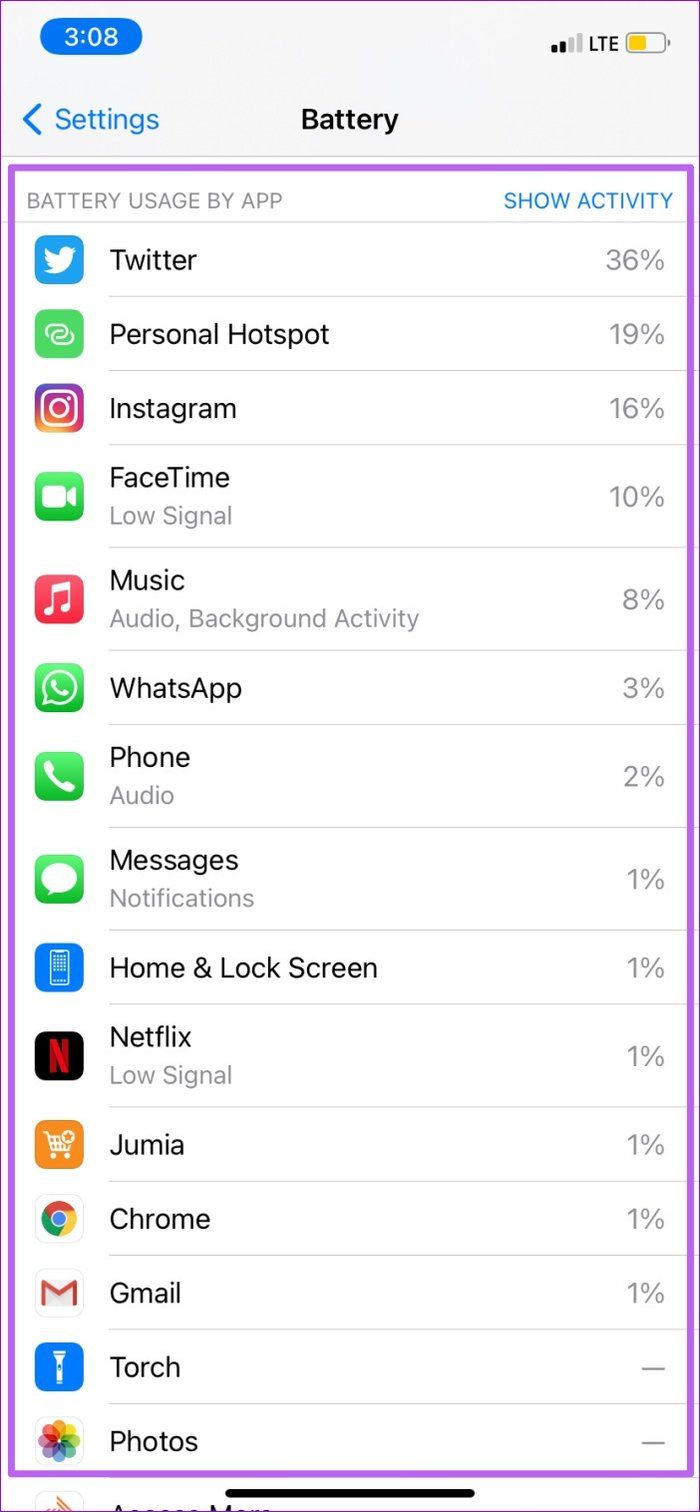
for iOS
Go to Settings > Battery. At the bottom of the page you should see a list of apps and their respective battery usage (in %) in the last 24 hours.

for Android
Stage 1: Go to Settings and select Battery.

Step 2: Tap the three-dot icon in the upper right corner of the battery menu page and select Battery usage.


You should see the portion (in %) that the app is draining your device’s battery and has been using since the last time you charged your phone.

Forcing a battery-powered app to stop only saves power if the app remains closed. The app will continue to consume battery as soon as you restart it. Again, unless an app is using most of your device’s power (especially in the background), forcing it to stop won’t save battery life.
How to Undo a Forced Stop
Once an app is force-stopped, the action cannot be undone. The app remains closed until you restart it manually. And basically, that’s the only way to undo the force stop – reopening the app.
Force Stop
At this point, we hope you learned a thing or two about forcibly stopping apps on your smartphone. As we mentioned above, it is recommended to force stop an app only when it malfunctions. If you need to save battery power (especially on Android), closing an app the normal way should suffice. Forcing apps to stop does little or no battery saving results. Leave a comment below if you have any related questions that we haven’t covered in this post.
Next: Do you want to factory reset your phone? Read the article linked below to find out what happens when you format your Android or iPhone smartphone.
Support our work ❤️
If you enjoyed this article, consider leaving a tip to help us keep publishing great content.
