


With features like scene optimization and HDR10+ recording, the Samsung Galaxy S10/S10 Plus brings home a solid camera. And without a doubt, these features combine to give the modern photographer a great experience and convince them to stick with the S10/S10 Plus.

But as we always want to say, out-of-the-box features are just the tip of the iceberg, especially when it comes to flagships. Unless you explore the camera app, you are missing out on many hidden features and settings. And this is where we come in.
We’ve used the camera app extensively and compiled the best camera tips and tricks for the Samsung Galaxy S10 and S10 Plus.
1. Enable Scene Optimizer
Compared to the old Galaxy Note 9, the Scene optimizer on the Galaxy S10 Plus is a bit smart. It can now distinguish between buildings and pets (among many other things) and optimizes the image accordingly.
To enable it, go to Settings by tapping the gear-shaped icon and hit Scene optimizer.

When enabled, you will see a powder blue icon come to life every time you start the camera. If you want to turn it off, tap the blue icon.

And it doesn’t end there. Scene optimizer provides traditional scene recognition capabilities as well as other features such as Document scanning and Starburst.
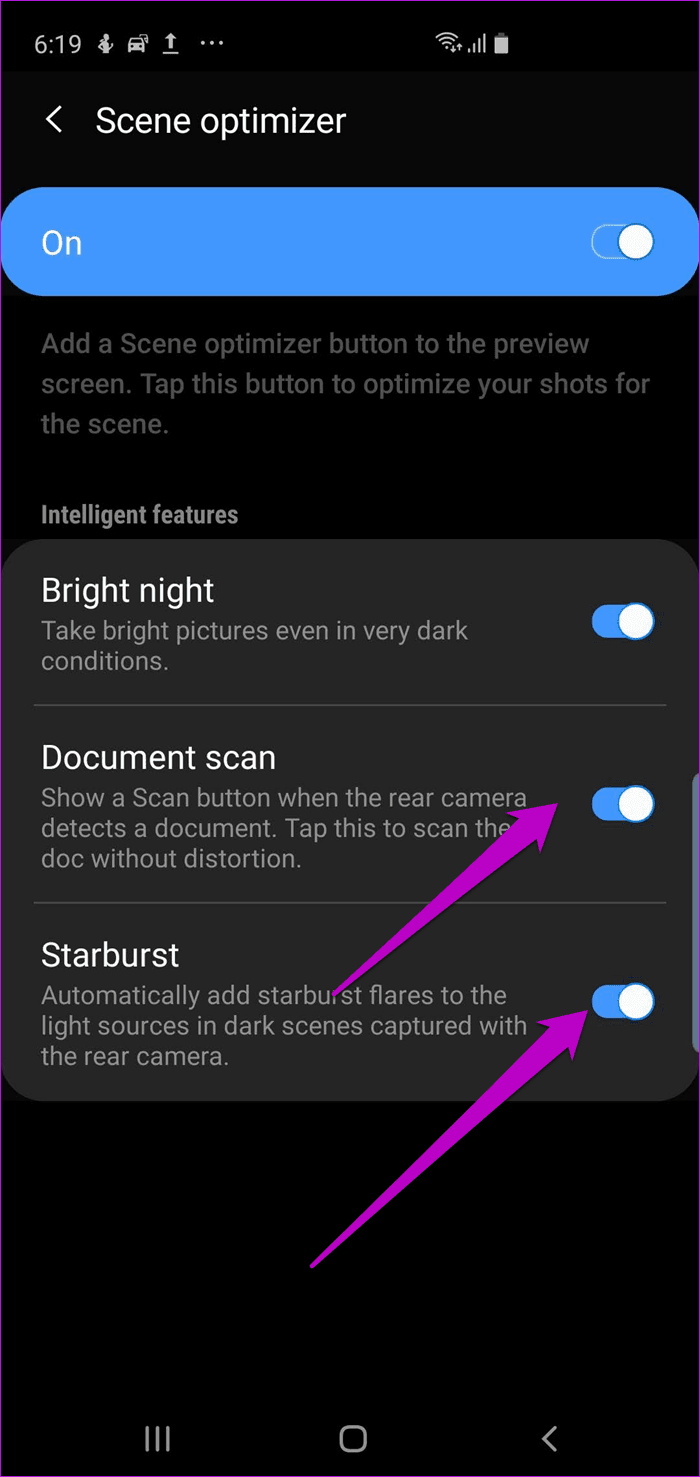
The former helps you scan documents, while the latter transforms bursts of light in low-light photos into artistic effects.
Wonderful Fact:
2. Enable Shooting Suggestion
The new Galaxy S10 Plus includes several new software tricks and one of them is Shot suggestions. It uses the phone’s AI prowess to detect scenarios and suggests ways to capture better shots – whether it’s flattening your shots or framing your subjects correctly.

When you activate it, you will see two guide spheres on the screen (one for smoothing and one for enhancing composition). All you have to do is align the focus with the spheres and capture the shot. The camera app takes some time to analyze the footage.

To enable it, go to Settings and turn the Shot suggestions button.
3. Try New Live Focus Modes
The Live Focus mode, which made its debut with the Galaxy Note 8, has four new shooting modes. Now you can try artistic effects like Edge Blur, Spiral or Google Photos-like color pop mode. This final mode keeps the color of the subject intact and paints the background in black and white.

The good news is that you can also lower the blur levels by dragging the slider. If you are not satisfied with the result, you can switch to the standard blur effect.
To do this, open the image in the gallery and tap the Change background effect bubble. Select the new mode, hit Save and bam! A new look.


The same goes for the front camera. You will find the same mods, with the only exception being the frame. It is a bit wide as the main camera is used instead of the telephoto lens in portrait shots.
Great Tip:
4. Capture Mouthwatering Scenes with Food Mode
Do you like food? If your answer is yes, you will love the Food Mode on your Galaxy S10. This mode not only captures every detail of the subject, but also gives it a rich tone.

Food mode can also be used to capture other colorful items in all their glory.

There are two ways for this. You can choose to highlight a specific area or keep the entire image in focus. The second is my choice.


Another interesting feature is the Palette. Using it, you can adjust the temperature and color of your image. Drag the slider to reveal the best of the attractive license plate in front of you.
Both of these options are available in the tools ribbon at the top.
Cool Tip
5. Automatically Correct Wide Angle Shots [S10 Plus]
Thanks to its ultra-wide mode, the Galaxy S10 can take some amazing wide-angle shots. I like that the fisheye effect is minimal unless you’re very close to your subject or shooting in landscape mode.
Fortunately, you can take care of that too. The phone has a special wide-angle shot correction feature to remove lens distortion from the edges. This way the images look very balanced and well proportioned.


You will find the feature under Save options in Settings. While you’re here, you can also enable HEIF images and RAW copies. The first will help save space, while the second will provide a picture (taken in Pro mode) in JPEG and RAW image format.

After all, RAW images capture more information than standard JPEG images and are therefore more flexible for editing.
6. Customize Your Slow Motion Videos
Like its predecessor, the Galaxy S10 offers two time slots, 0.4 and 0.8 seconds, for shooting slow motion videos.
All you have to do is tap the timer in the upper right corner and choose between two alternatives. At the same time, make sure that Auto Detect mode is kept on. As the name suggests, recording will start automatically when it detects any action.

Also, be sure to check out all the additional settings reserved for super slow motion videos. To do this, open the video in the gallery and tap Play Super slow motion video bubble to open the video in edit mode.

Now you can customize everything from the audio track to the start and end point. To change the audio track, simply press the small Music icon and select the Theme music.


But my favorite settings are hidden in the Details tab under the three-dot menu.


This adds a whimsical touch by reversing or putting a particular clip on a loop.
7. Advanced Recording Options
The Samsung S10 is the first phone to support HDR10+, a high dynamic range format. This feature optimizes the color and contrast of videos to make them more realistic.


However, this is a Labs feature, so you may not get the same output every time. If you still want to proceed, you can enable it by going to Settings > Advanced recording options > HDR10+ video.
8. Video Stabilization and Open Fixed Videos
The standard wide camera and telephoto lens are optically stabilized, so you can expect your videos to be stable. However, you can go a step further and enable Video Stabilization to create smooth shots.

This feature is available in the general camera settings and ensures that the video you shoot is stable and free of shakes and shakes.
Another nifty stabilization feature is the Super Steady stabilization mode.

It is indicated by a hand icon in video mode and helps ensure smooth footage. The only limitation is that videos are recorded in 1080p resolution.
note
9. Rearrange Camera Modes
Do you want food mode next to automatic mode? If yes, then you can do it. With the Galaxy S10, you can rearrange the camera modes as you wish. Go to Settings > Camera mods, tap mods and drag to rearrange.


You can also disable several mods to mess up the camera interface. For example, if you don’t use Slow motion or Hyperlapse, you can remove them from the list.
Also, if you want the Galaxy S10 camera to open in the mode you used last, you can enable the feature under Camera modes.
Prepare the Camera
Samsung has significantly upped its game when it comes to smart (and smart) features. Combine these new features with a few of the older ones and you have the perfect phone camera looking at you. You may not even have to think about carrying a DSLR around.
Watch this video to see camera tips and tricks in action.
/>
Next up: Did you know the Galaxy Note 9 and Galaxy S10 share? almost similar home screen features? Check the post below to find out exactly how to customize it.
Support our work ❤️
If you enjoyed this article, consider leaving a tip to help us keep publishing great content.
