


Since the early versions of Windows, Microsoft has always wanted to save time for its users when starting up or shutting down the system… Sometimes successfully (Windows XP, Windows 7…), sometimes with some disappointment (Windows Vista is remembered for its excessive slowness). Under Windows 10Microsoft has completely ignored the boot menu, which usually works right after the Bios or UEFI. Fortunately, it is still possible to access Windows 10 safe mode, but it is now well hidden.
Despite all these attempts to speed up the startup of Windows 10, it is possible that the computer is showing some signs of weakness, especially in small configurations or even more powerful PCs, but which apps pile up. Since there are many programs that install components that will start at the same time as Windows 10. Look no further: you have found one of the main causes of slow system startup. So it’s time to clean up all those apps that have infected Windows 10 by deleting them. As for our post on cleaning Windows 10, we chose not to install any apps here. We will only use the basic tools provided by Microsoft, since it is not a question of polluting Windows 10 with so-called optimization tools, but rather gaining speed and efficiency.
Disable unnecessary programs that start at Windows 10 startup
As new apps are installed, Windows 10 is overwhelmed with software that launches as soon as the Desktop appears. Sometimes some are looking for an update, sometimes they are running in the background so you can get up to speed when you want to launch them. What seems useful to the user is not necessarily so to the operating system. To sort the apps that run when Windows 10 starts, follow these steps:
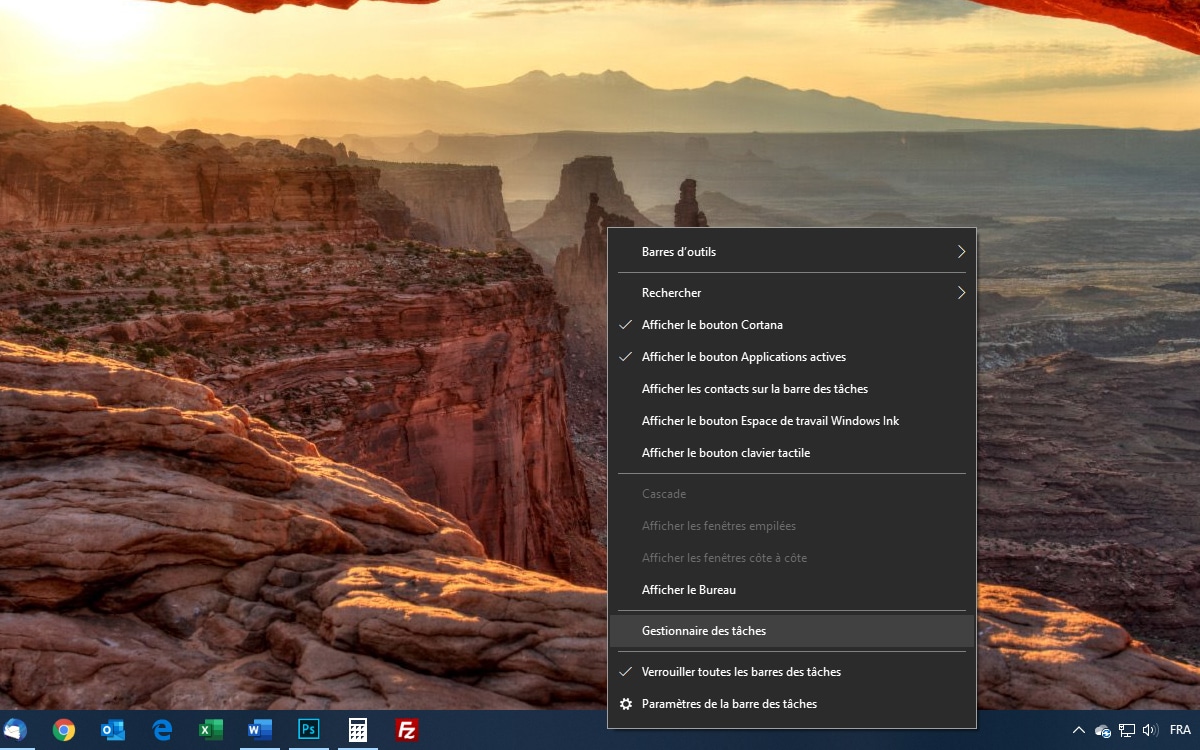
- As soon as Windows 10 is started and using the right mouse button, click on the taskbar. choose option Task Manager. You can also call the same handler by pressing the traditional key combination. [CTRL] + [ALT] + [SUPPR].

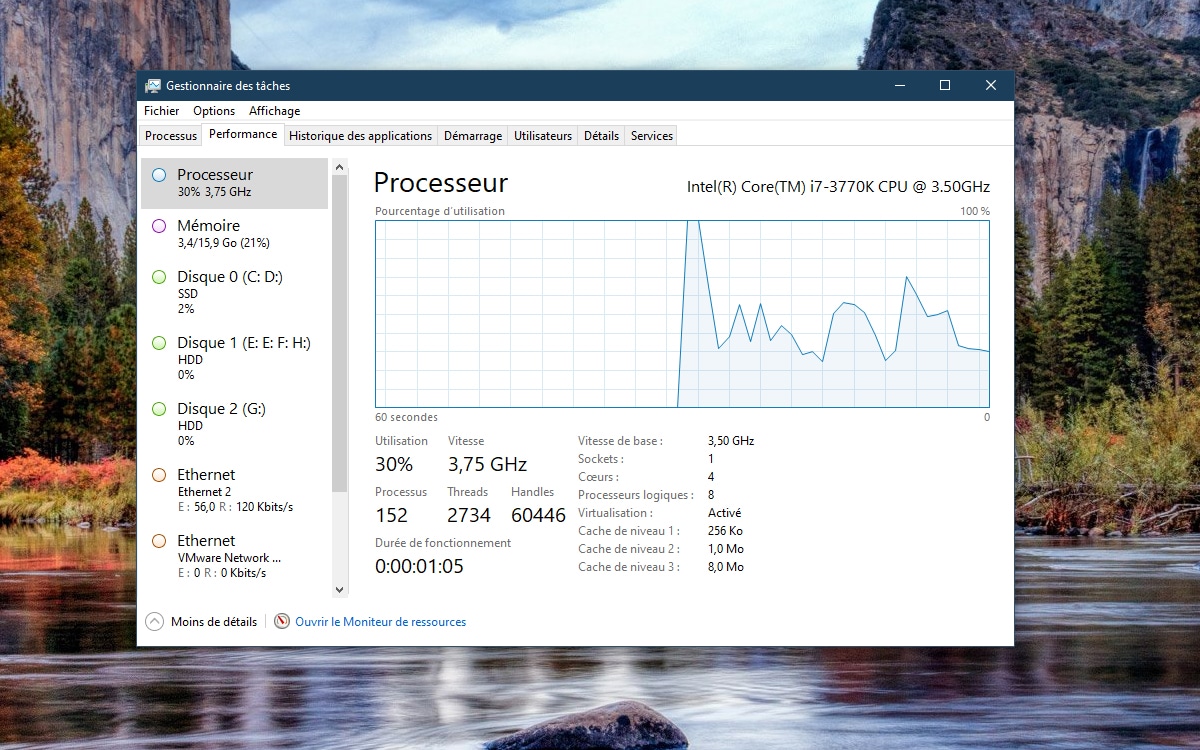
- click more details completely to the left. go to tab Yield. There you can observe the usage of your resources. If, when you start Windows 10, you notice that performance has “peaked” significantly (over 80%, even reaching 100%), it is because one or more programs are automatically loading and monopolizing all resources.
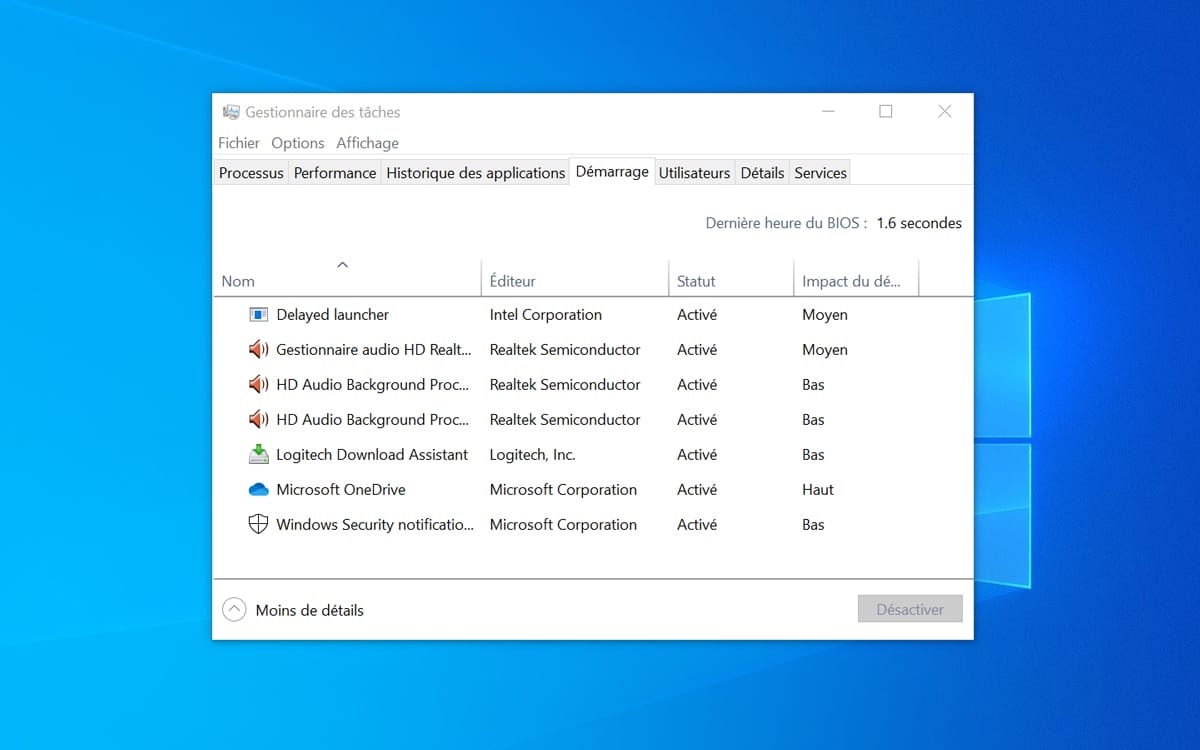
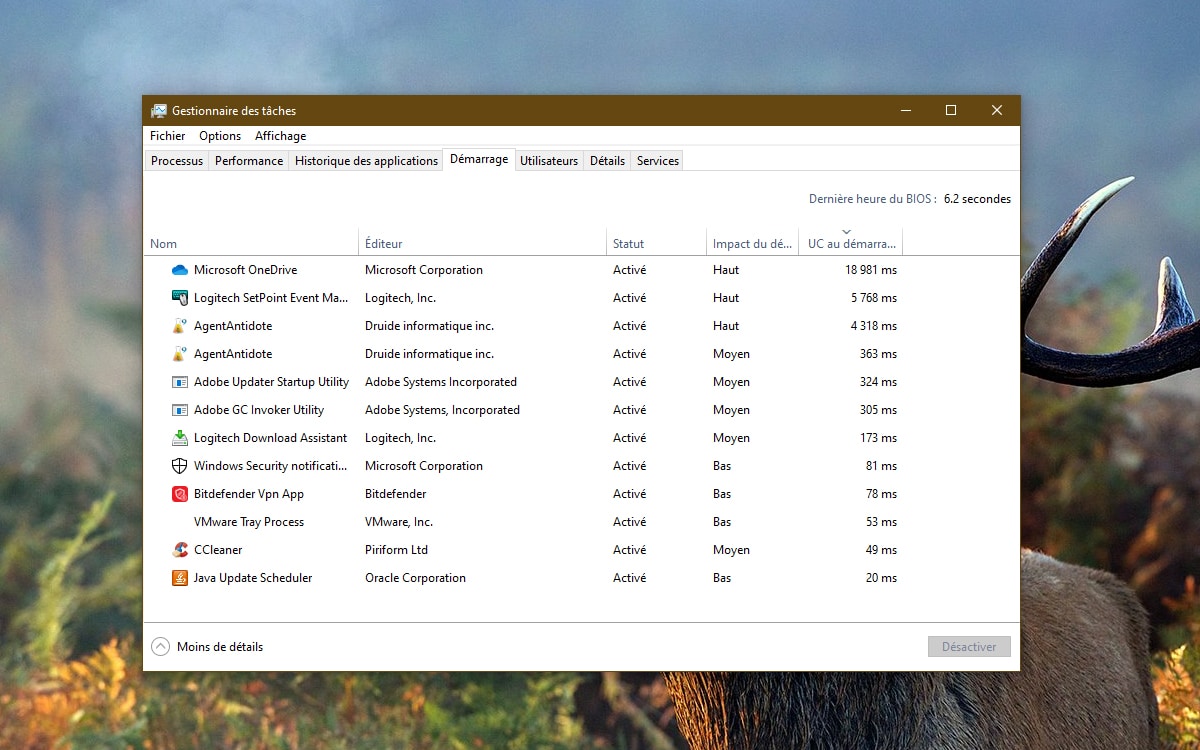
- since always Task Managerthis time click on tab Run. Here you can find a list of all the programs loaded when Windows 10 starts, such as exact start time, startup type, shutdown time.
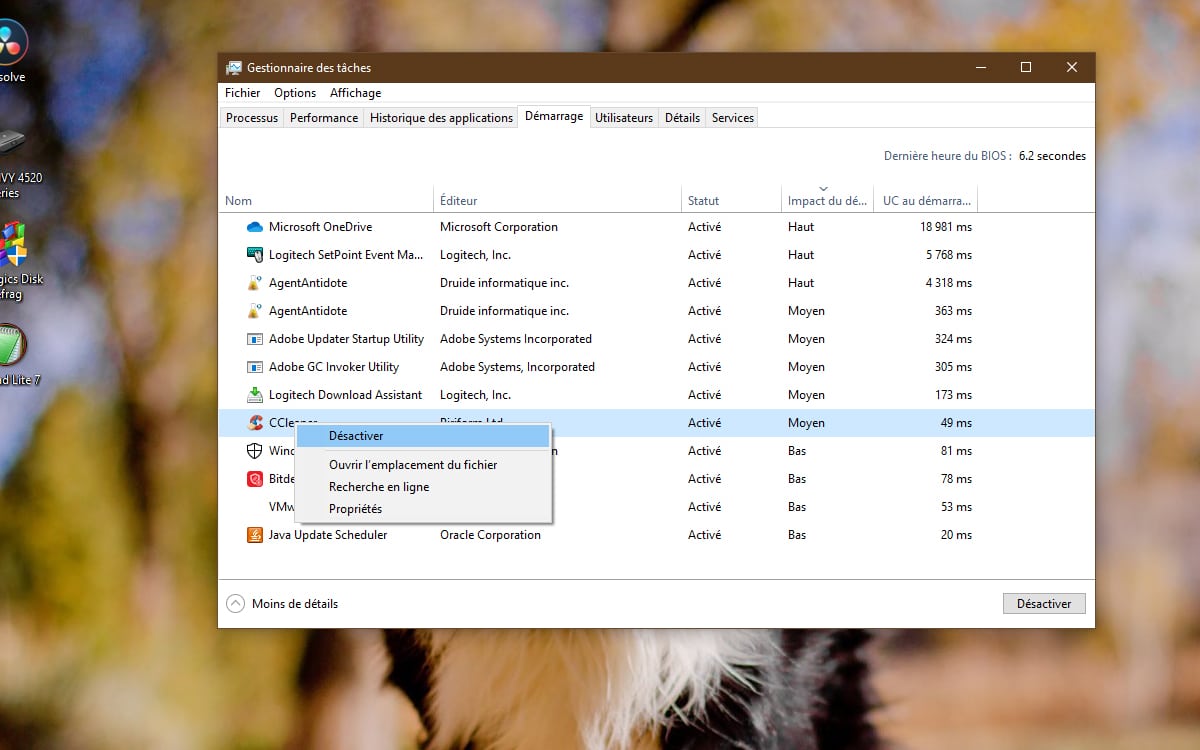
- Every application has an initial degree of effectiveness. This tells you the resources the app needs to boot Windows 10. From this dashboard you have the option to disable the most greedy programs. To do this, click with right button in one of the programs on the screen and select the function Deactivate.
- How do you know if a program is necessary? Of course, do not disable antivirus software or your devices drivers and managers. On the other hand, if your computer is really slow, you can disable all the programs that check for updates. This is for example Adobe software, Java etc. On the other hand, you will have to do a manual check from time to time for an update of the same programs. Also remove any tools that will make your PC perform well (CCleaner in the screenshot below). Finally, you can also disable programs that you rarely use (VMware in our example).
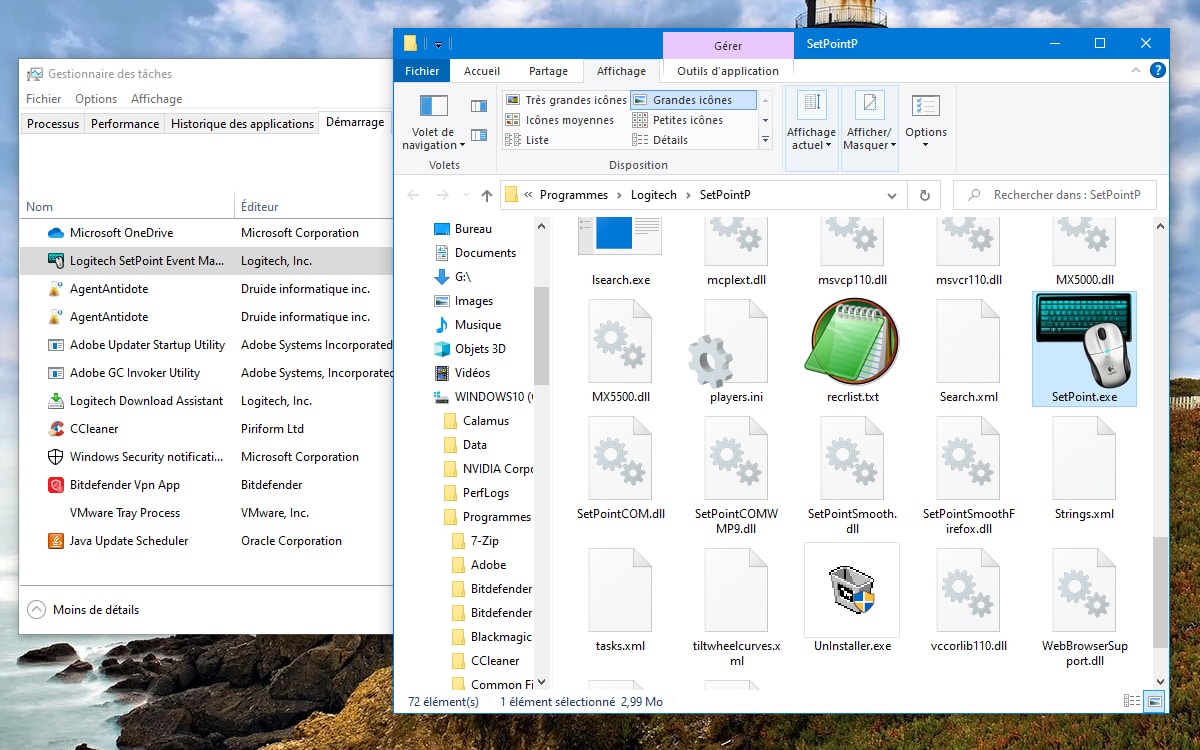
- If you have any doubts about the source of the software running when Windows 10 starts, you can always check which application it is connected to. For this, since always Task Manager and tab Runright click on one of the programs and select function Open file location. Explorer opens directly to the folder where the executable is located; this allows you to see which software the same executable has been added to.
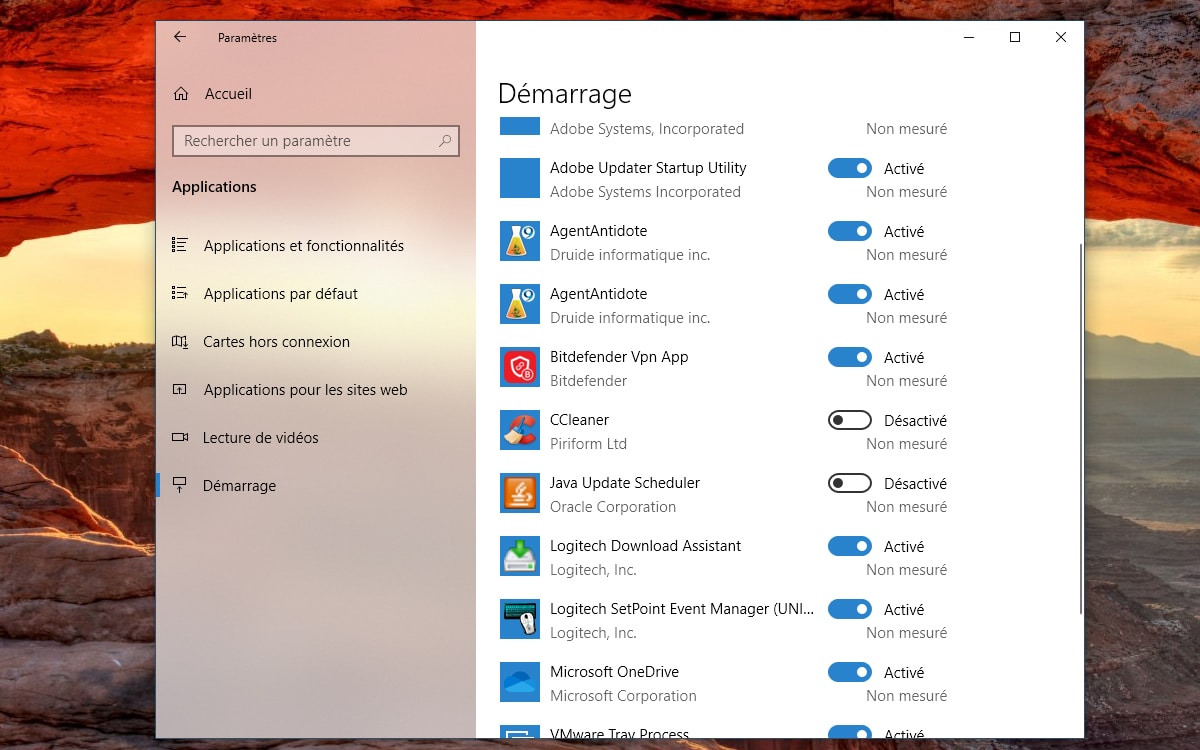
- Finally, for the sake of completeness, note that it is also possible to disable apps from Windows 10’s Settings module. go to menu To startClick the icon, then Settingsand select the function applications. See you at last Run. Here you have the tools to enable or disable applications that run when Windows 10 starts. A module maybe clearer and simpler than Task Manager, but unfortunately not complete.
Support our work ❤️
If you enjoyed this article, consider leaving a tip to help us keep publishing great content.
