


you suspect it your computer spying on you without your own free will? If Microsoft received a lot of complaints about it when it was released Windows 10, the Redmond company is now trying to break the nails. During installation, the operating system will ask you what access rights you have given, and of course it is possible to give none of them. But we are not immune to a small loophole or bug in the system. And that’s not counting malicious program which would install themselves on your machine and which would spy on you with impunity. Unless the software in question Intentionally installed by someone you know Who wants to know more about your activity?
Whatever your reason for maintaining a certain level of privacy on your computer, here’s how to start: Turn off microphone. This is already a good way to protect your privacy. So proceed as follows.
Disable microphone in Windows 10 using the settings module
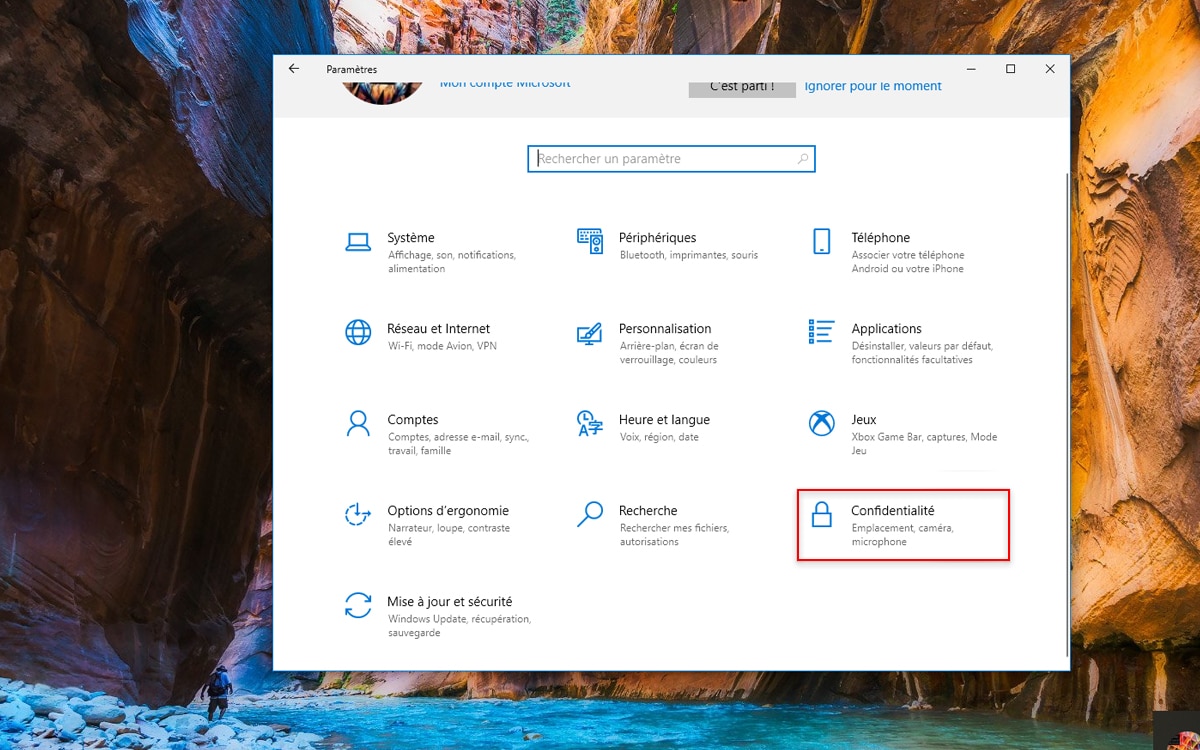
- click on the menu To start and go to icon Settingssymbolized by a toothed wheel.

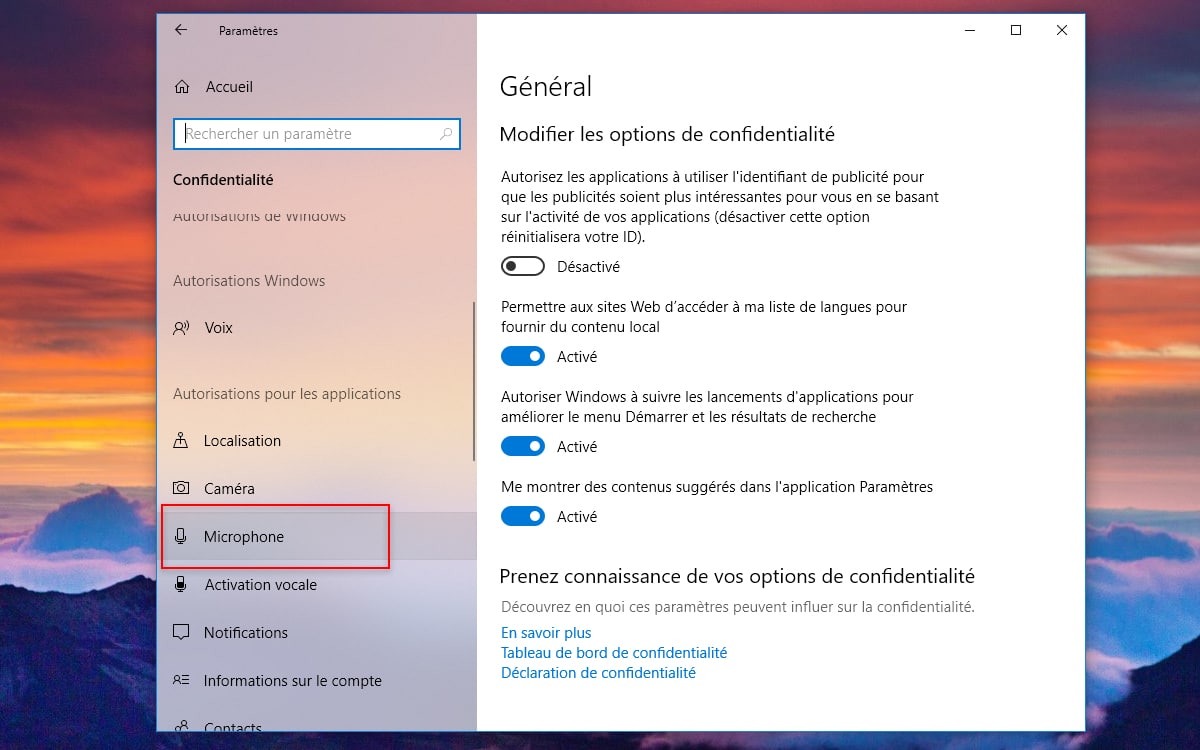
- Then select the function Privacy. In the left column, you should see an option called Microphone. Choose.
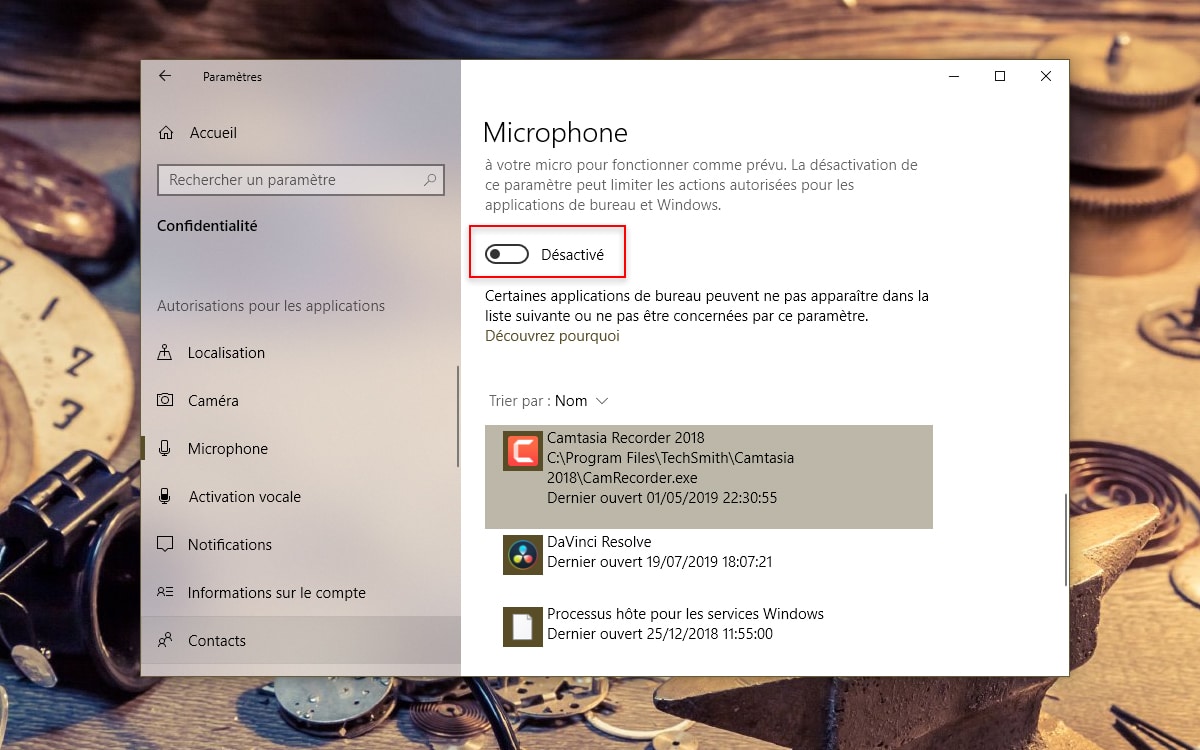
- If you want to permanently cut off access to your PC’s microphone, click the button. To organise. In the small window that appears, set the microphone access as follows: Disabled. That’s it: the microphone is completely broken.
- It might also be a good idea to do this on an app-by-app basis, rather than completely disabling your computer’s microphone. To do this, stay in the module Settings > Privacy > Microphone. A list of apps from the Microsoft Store will reveal itself. Cortana, Camera app, Skype, Xbox Game Bar etc. You can enable or disable them individually.
- Still in the same window but slightly lower this time. You should find a list of desktop apps that might be using the microphone. You have no choice there: you will either have to disable all apps or leave them all enabled.


Remove the microphone from the list of computer components
Another method is to remove the microphone completely. To do this, do the following:
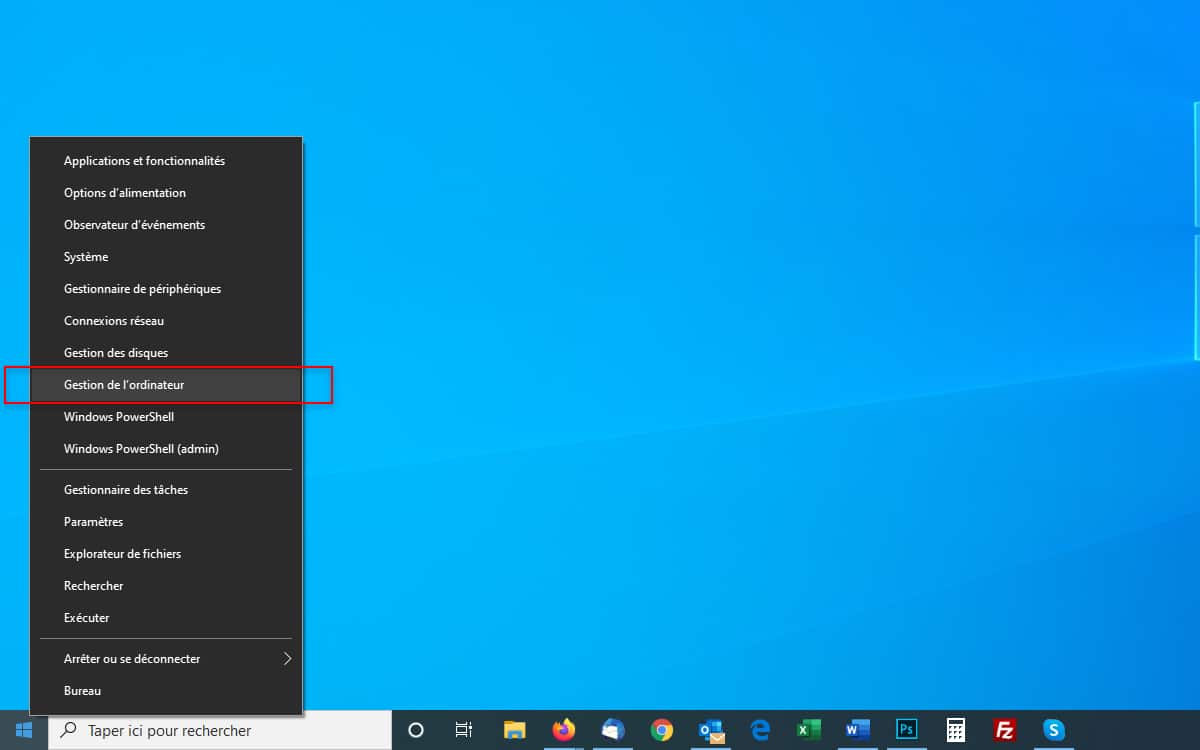
- right click menu To start. select function Computer Management.
- Then go to Device Manager in the left column. Expand the function in the middle of the window Audio inputs and outputs. You should place your microphone there. Select using the right button and select the function Disable device.

Finally, feel free to check out our other tutorial if you want to disable the webcam in Windows 10 during this process.
Support our work ❤️
If you enjoyed this article, consider leaving a tip to help us keep publishing great content.
